
How to Add Live Chat to Any Website
Add website chat with a one-line script snippet. Where the snippet goes, generic steps for common site builders, the live/paused setting, and how to verify it loaded.

What you are actually installing
Adding chat to a website sounds like a development task and usually is not. What you install is a script snippet: a short line that loads the widget from our servers and configures it for your site. It goes in your site’s header so it is present on every page, and after that all the configuration happens in the onmsg workspace rather than in your code.
That matters for two reasons. First, you never have to redeploy your site to change how the chat behaves, colours, flows, business hours and AI settings all live in the Website Chat & Widget Customization settings. Second, there is no plugin tied to a particular CMS version, so an update to your website platform cannot break your chat.
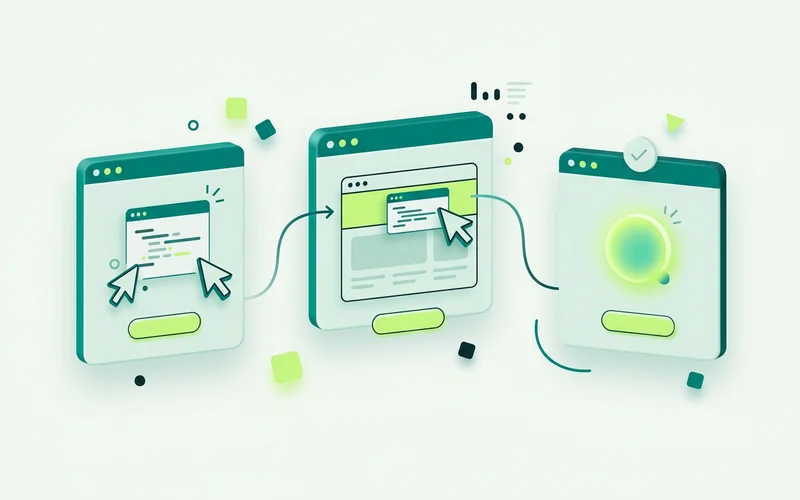
The three steps
1. Copy the snippet. Create a site in your workspace and copy the script snippet it gives you. It is scoped to that site, which is how the widget knows which configuration, knowledge base and flows to load. If you are still weighing up whether chat is the right channel at all, what website chat software actually does covers the ground before you install anything.
2. Paste it into your header. You want it on every page, so the header is the right place. Nearly every website platform has somewhere to do this, usually called custom code, header scripts, or something similar. If you use a tag manager, add the snippet as a custom HTML tag set to fire on all pages. That is often the easiest route when you do not have direct access to the theme.
3. Verify it loads. Open your site in a normal browser window, not a preview. The launcher should appear in the corner within a second or two. Click it, send a test message, and check the conversation appears in your inbox.
Generic steps for common site builders
Platforms move their settings around, so rather than naming menus that will be wrong in six months, here is the shape of it:
- Hosted site builders: look under site settings for custom code, then a head or header field. Paste and publish.
- Self-hosted CMS with a theme editor: add the snippet to the template that renders
<head>sitewide, not to an individual page template. - Framework or static site: add it to your root layout or base HTML template, the same place your analytics tag lives.
- Tag manager: new custom HTML tag, paste the snippet, trigger on all pages, publish the container.
If your platform only allows body scripts rather than head scripts, that is fine. The widget will still load.
Turning it on and off
Once installed, you often want control over whether the widget shows without editing your site again. That is what the live/paused site setting is for: paused hides the widget, live brings it back. Use it during a migration, over a shutdown period, or in any week where nobody can answer and a visible chat would set an expectation you cannot meet.

For the softer version of the same idea, set business hours and a timezone and choose your after-hours behaviour. That keeps the widget visible while being honest about who is around, and lets an offline path collect the enquiry properly.
If the widget does not appear
Four things account for nearly every case. The snippet went onto one page rather than the sitewide template. The site is cached and you are looking at an old copy, clear the cache or check in a private window. The site is paused in the workspace. Or a script blocker in your browser is stopping it, which is worth ruling out before you go looking for a real problem.
Running more than one website
If you look after several sites, each one gets its own snippet, because each site in the workspace keeps its own configuration, conversations, knowledge and flows. Switching between them happens inside the same workspace rather than across separate accounts, see Multi-Site & API for how that is organised, including site-scoped API keys if you would rather build your own chat surface than embed the widget.
After the snippet: three things worth doing on day one
Installation is the easy part. These three make the difference between a widget that sits there and one that earns its place.
Add a few knowledge sources. Even three (hours, coverage, how pricing works) change the chat from a contact form with a launcher into something that answers. Without them, a grounded agent in Strict mode will correctly refuse almost everything.
Set business hours and an offline path. A visible chat implies someone is there. Deciding what happens at 10pm on day one avoids a fortnight of unanswered evening enquiries.
Write the teaser as an offer. “Ask about lead times” earns more opens than “Hi there”. It is a ten-second change with a disproportionate effect on how often the widget gets used at all.
Verifying it properly
A quick check that catches most problems takes about five minutes.
Load the site in a private window on a desktop and confirm the launcher appears. Open it, send a message, and check the conversation arrives in your inbox. Then repeat on a phone, because that is where most visitors will see it and where placement problems show up.
Finally, load one of your longer pages and scroll. Sticky headers, cookie banners and back-to-top buttons all compete for the same corner, and the placement offsets exist precisely for that collision.
If nothing appears at all, the usual causes are the snippet landing on a single page rather than the sitewide template, a cached copy of the site, the site being paused in the workspace, or a browser extension blocking scripts.
Once it is live, the next thing worth doing is customising the widget so it looks like your site, then setting business hours and after-hours behaviour.
Questions people ask about this
Do I need a plugin for my CMS?
No. onmsg installs with a script snippet, so anywhere you can add a script tag will work, a hand-built site, a page builder, a framework, or a tag manager. There is no native CMS plugin to install or keep updated.
Where exactly do I paste the snippet?
In your site's header, so it loads on every page. Most platforms have a custom-code or header-scripts field for this. If you use a tag manager, add it as a custom HTML tag firing on all pages instead.
How do I hide the widget temporarily?
Use the live/paused site setting in the workspace. It hides the widget without touching your website code, which is what you want during a migration or a week when nobody can answer.
Related guides
How a Small Team Can Handle Website Enquiries Without Extra Headcount
Deflect repetitive questions with grounded AI, capture context before handoff, and use a shared inbox for the conversations that need a person.
Read guideLive Chat vs AI Chatbot vs Contact Form: Which Does Your Site Need?
Compare live chat, AI chatbots and static contact forms for handling website enquiries, coverage, response speed and effort, and see how onmsg combines all three.
Read guideWhat Is Website Chat Software?
A plain-English guide to website chat software: what a chat widget does, how live chat, AI answers and guided flows differ, and where it fits for a small business.
Read guideWant to try this on your own site?
No credit card required.